
NIMO 15.6 AI Creator Laptop
5.0Editor score
Ryzen 5 6600H
16GB DDR5 RAM
512GB SSD storage
This guide compares the top laptops for Lightroom Classic based on display quality, processing power, RAM, and battery life to help you choose the perfect
Finding the right laptop for Lightroom Classic requires balancing display accuracy, processing speed, and portability. Photographers need machines that handle large RAW files smoothly without lagging during complex edits.
We evaluated ten real products using their technical specifications and user feedback to determine which models deliver the best performance. Our analysis focuses on color accuracy, CPU power, memory capacity, and thermal management.
Each pick highlights specific strengths like OLED screens or long battery life to help you decide based on your workflow needs. Please note that availability and pricing change frequently so verify details before purchasing.
5.0Editor score
4.3Editor score
4.3Editor score
The following comparison table provides a side-by-side overview of the key specifications for each laptop to help you quickly identify which model matches your editing requirements and budget constraints.



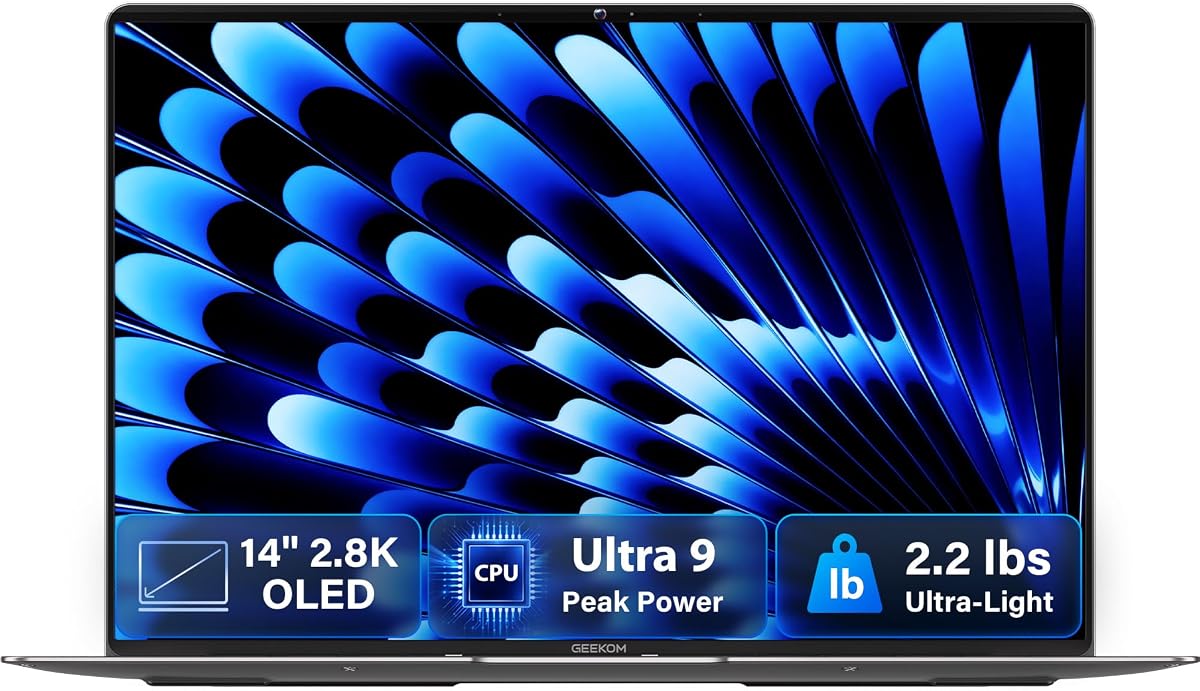
The GEEKOM GeekBook X14 Pro stands out for its exceptional 2.8K OLED display that delivers true blacks and vibrant colors essential for photo editing. Its Intel Core Ultra 9 processor handles demanding Lightroom tasks smoothly while the 32GB RAM ensures multitasking efficiency.
We may earn a commission when you buy through this link, at no additional cost to you.
The 100% DCI-P3 color coverage makes it ideal for accurate color grading in Lightroom Classic. The 120Hz refresh rate provides fluid scrolling through large image libraries. Additionally the 72Wh battery supports up to 16 hours of use which is rare for laptops with OLED screens.
While the OLED panel risks burn-in over time it remains one of the best displays for creative work. The lightweight magnesium alloy chassis makes it portable for travel. You may find it pricey but the visual fidelity justifies the investment for serious editors.
Photographers who prioritize display accuracy and portability should choose this model. It balances performance and battery life better than most ultrabooks. We recommend it for professionals needing a reliable machine for on-the-go editing sessions.
The OLED panel ensures every hue is rendered accurately for critical color decisions in Lightroom.
Up to 16 hours of runtime means you can edit all day without hunting for an outlet.
We may earn a commission when you buy through this link, at no additional cost to you.
The LG gram 17Z95P offers a spacious 17-inch screen that allows you to see multiple panels in Lightroom Classic clearly. Despite its large size it remains incredibly lightweight which is perfect for travel photographers who need screen real estate.
We may earn a commission when you buy through this link, at no additional cost to you.
The WQXGA resolution provides sharp details for cropping and retouching work. The IPS panel maintains consistent colors across viewing angles. It includes Thunderbolt 4 and HDMI ports for easy connection to external monitors or storage drives.
The 11th gen processor may struggle with heavy batch processing compared to newer chips. The 16GB RAM is sufficient but not expandable for massive projects. However for general editing its screen size and portability make it a strong contender.
Choose this if you want a big workspace in a light package. It suits photographers who work mostly with standard RAW files. For heavy video editing consider a model with more power and RAM.
A 17 inch screen gives ample room for the Develop module and library panels.
The ultralight build ensures you can carry it anywhere without strain.
We may earn a commission when you buy through this link, at no additional cost to you.
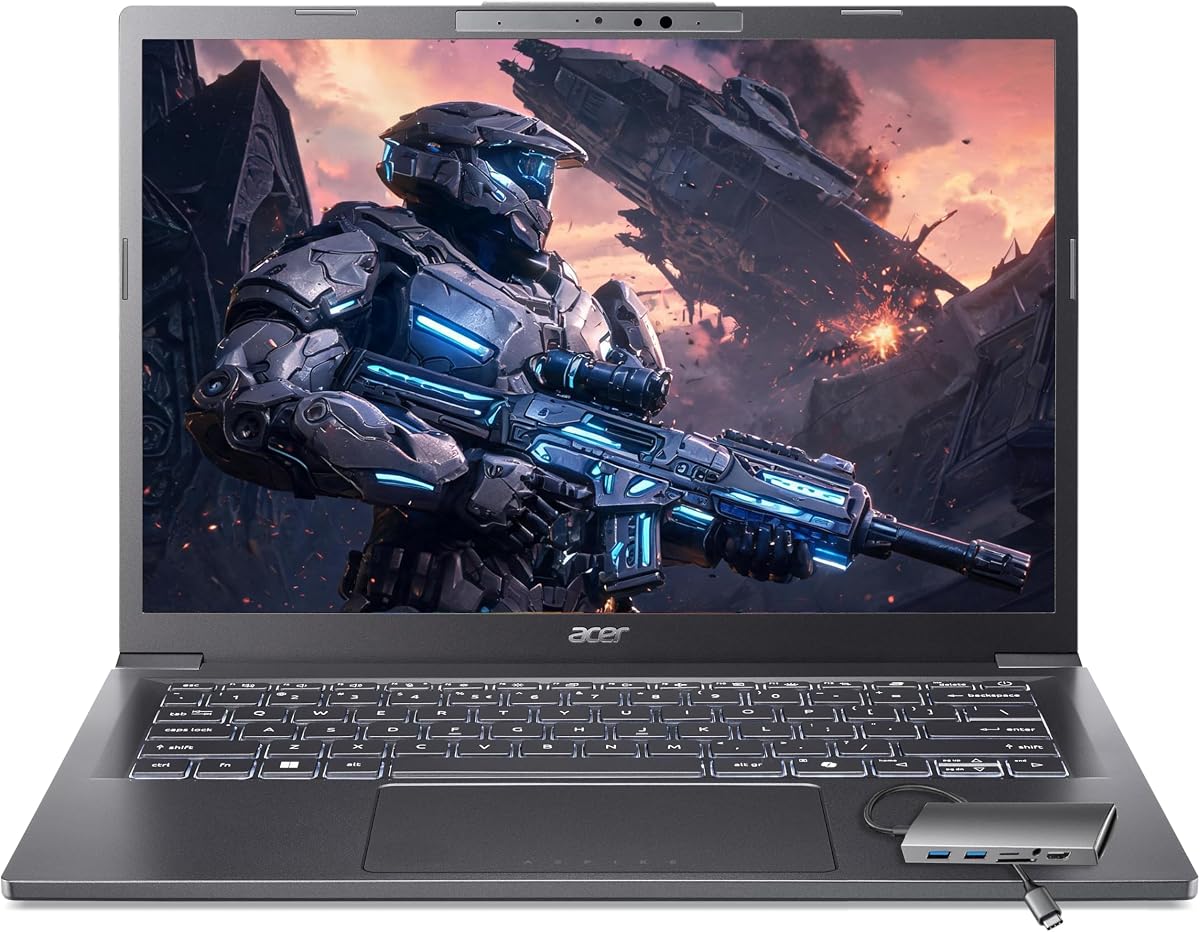
The Acer Aspire Laptop 2026 features a touchscreen that lets you interact directly with Lightroom sliders and brushes for intuitive adjustments. Its Intel Ultra 7 processor supports AI tasks that speed up editing workflows.
We may earn a commission when you buy through this link, at no additional cost to you.
With 32GB of RAM you can keep many browser tabs and apps open without slowdown. The 2TB SSD provides ample storage for large photo libraries. The NPU handles background blur and AI effects locally which saves time.
The battery life may not match ultrabooks due to the high performance components. Thermal management could limit sustained performance during long exports. Still the touch interface and high RAM make it versatile for modern editing.
Opt for this if you prefer direct touch control and need storage. It works well for photographers using AI tools frequently. Verify thermal performance if you often export hundreds of photos at once.
Direct touch input streamlines masking and cropping tasks significantly.
The NPU accelerates AI features without impacting CPU performance.
We may earn a commission when you buy through this link, at no additional cost to you.
The NIMO 15.6 AI Creator Laptop delivers impressive performance for its price making it ideal for entry-level Lightroom users. The Ryzen 5 6600H processor handles basic edits smoothly while DDR5 RAM supports multitasking.
We may earn a commission when you buy through this link, at no additional cost to you.
It features a full HD IPS panel that offers decent color accuracy for the price. The 512GB SSD is fast but may need expansion for large projects. You can upgrade RAM to 64GB later if your needs grow.
The 1080p screen may lack the pixel density needed for detailed retouching. Battery life is moderate so expect to charge mid-day during heavy use. Despite these trade-offs it offers strong value for budget-conscious creators.
Choose this if you need capable editing tools without breaking the bank. It suits students or hobbyists who edit casually. For professional work consider upgrading the RAM first.
Strong Ryzen processing ensures smooth Lightroom navigation at low cost.
Easy RAM upgrades allow you to extend the laptop lifespan.
We may earn a commission when you buy through this link, at no additional cost to you.
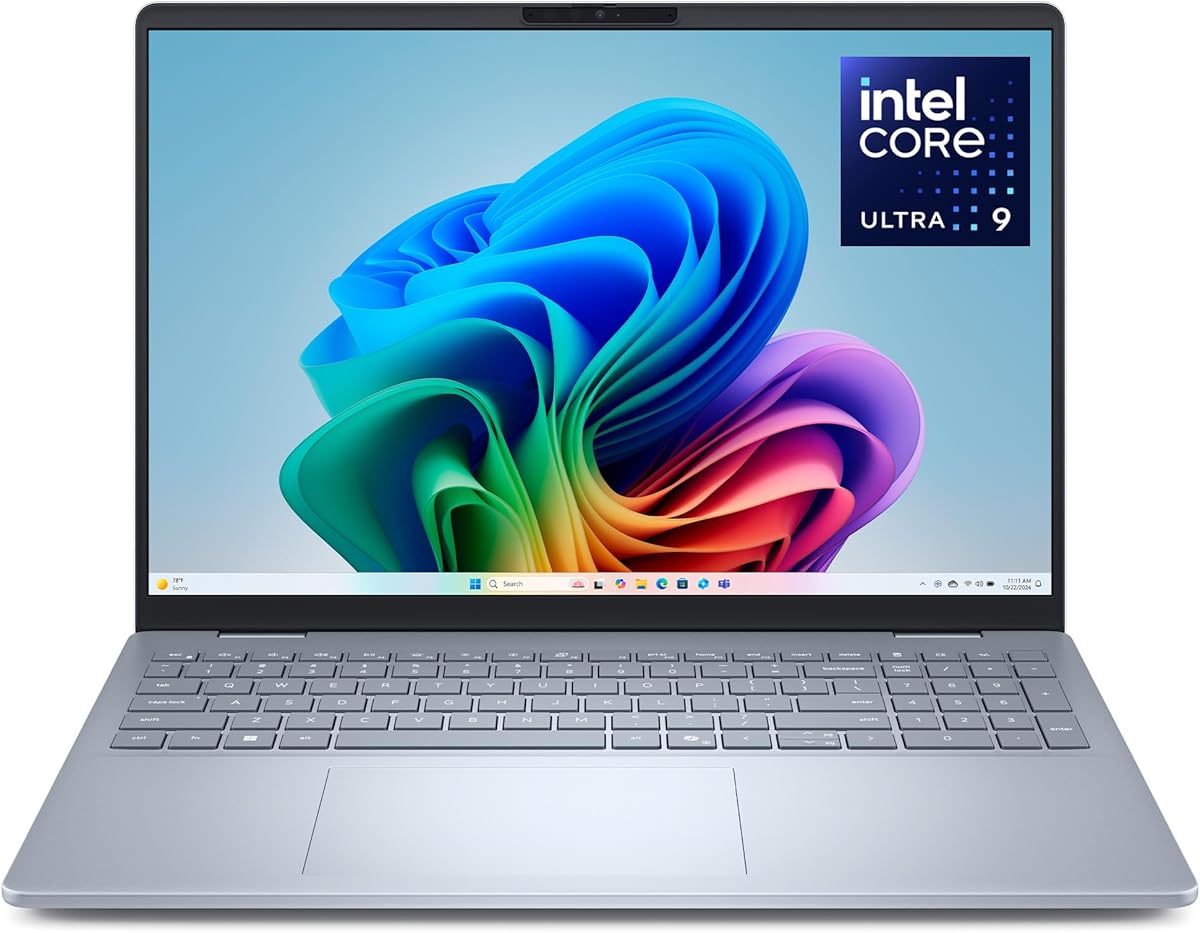
The Dell 16 Plus Laptop QHD+ combines premium materials with powerful Intel Core Ultra 9 performance for serious editing tasks. Its 16:10 screen provides extra vertical space for Lightroom panels and timelines.
We may earn a commission when you buy through this link, at no additional cost to you.
The aluminum body feels durable and professional. AI engines optimize performance for better battery life and heat control. The 32GB RAM handles large catalogs without stuttering during complex adjustments.
While the webcam is only FHD+ it remains suitable for calls. The price is high compared to competitors but build quality is superior. Service support is reliable which matters for professionals.
Invest in this if you want a machine that lasts years. It suits enterprise users needing security and reliability. Check if the screen brightness meets your outdoor editing needs.
Military-grade tested materials ensure longevity for travel and daily use.
The 16:10 aspect ratio maximizes visible interface space for editing.
We may earn a commission when you buy through this link, at no additional cost to you.
The NIMO 15.6 AI Creator 7 features an AMD Ryzen 7 processor that excels in multi-core tasks like exporting and batch processing. The 32GB RAM ensures smooth performance with large Lightroom catalogs.
We may earn a commission when you buy through this link, at no additional cost to you.
It includes a 1TB PCIe 4.0 SSD which provides quick access to project files. The system allows RAM upgrades up to 64GB making it future proof. The 180-degree hinge helps when collaborating with clients.
The FHD screen may not be bright enough for daylight editing. Fans can get loud under heavy load which might distract. Still its raw power makes it excellent for performance-driven workflows.
Choose this if processing speed is your main priority. It works well for photographers who prioritize export times. Ensure you can tolerate some fan noise during exports.
The Ryzen 7 8745HS delivers rapid exports for large batches.
Dual SSD slots and RAM upgrades allow for long-term use.
We may earn a commission when you buy through this link, at no additional cost to you.
The HP 17 Inch Laptop provides a large 17.3 inch display that accommodates Lightroom panels comfortably. It comes with Windows 11 Pro which offers enhanced security for business users handling client data.
We may earn a commission when you buy through this link, at no additional cost to you.
The 32GB RAM handles multitasking with many apps open. The numeric keypad aids quick entry of values in the Develop module. Fast charging helps keep you productive during meetings.
The IPS display is decent but not color calibrated for pro work. Its weight makes it less portable than 14 inch options. Still it serves well for office-based editing and presentations.
Pick this if you need a business laptop for photo editing. The Pro features add value for security. If portability matters more consider a lighter model.
Windows 11 Pro offers better encryption for client file protection.
The keypad streamlines entering precise adjustment values quickly.
We may earn a commission when you buy through this link, at no additional cost to you.
The HP 17 Laptop 8GB is a budget-friendly option for casual Lightroom users who need a large screen. The Ryzen 5 processor supports basic editing though 8GB RAM may limit multitasking.
We may earn a commission when you buy through this link, at no additional cost to you.
The 17.3 inch display provides ample viewing space. It runs Windows 11 Pro for added security features. DDR5 memory helps with basic responsiveness despite the low RAM.
Expect slowdowns with large RAW files or many tabs open. The 512GB SSD is adequate for smaller projects. It is suitable for beginners who do not process high volumes daily.
Choose this if you need a screen on a strict budget. It works for learning Lightroom basics. For serious editing upgrade the RAM first.
Low price makes this ideal for students starting photo editing.
A 17.3 inch display helps see details without zooming too much.
We may earn a commission when you buy through this link, at no additional cost to you.
The 2026 Laptops Computer is designed for basic computing and very light photo editing. The Pentium processor handles simple adjustments but will struggle with complex edits.
We may earn a commission when you buy through this link, at no additional cost to you.
It includes Office 365 which adds value for students. The 8GB RAM supports basic Lightroom use. Storage is limited to 256GB so external drives will be needed.
Battery life is short so carry a charger for all-day use. The IPS screen is adequate for general viewing. It serves well for occasional editing or learning.
Pick this only for basic tasks and budget needs. It is not suitable for professionals. Verify upgrade options before purchasing.
Included Office 365 helps students manage documents and photos.
Suitable for light adjustments but not heavy processing.
We may earn a commission when you buy through this link, at no additional cost to you.
The BLUEING 2026 Laptop is a lightweight option for students doing basic photo editing. The Pentium Gold processor handles simple Lightroom tasks but may lag on larger files.
We may earn a commission when you buy through this link, at no additional cost to you.
It includes a privacy slider for webcam security. TF card slots offer extra storage without external drives. The USB-C port supports charging and data transfer.
The battery is small so expect short usage times. The processor is weak for heavy editing. It suits occasional edits or travel backups.
Choose this if you need maximum portability and low cost. It works for students needing basic tools. Upgrade storage externally for large projects.
Thin design fits easily in backpacks for daily transport.
TF card slots allow quick storage expansion for photos.
We may earn a commission when you buy through this link, at no additional cost to you.
Selecting a laptop for Lightroom Classic involves evaluating several technical factors that directly impact your editing speed and image quality. Understanding these components helps you invest in a machine that meets your specific workflow needs.
A high-quality display is critical for accurate color grading and precise editing. Look for screens with high resolution like QHD or OLED that offer true blacks and vibrant colors. Ensure the panel covers a wide color gamut such as 100% sRGB or DCI-P3 for professional results.
Prioritize displays with good brightness and contrast to ensure your work looks correct across different devices.
The CPU drives the performance of Lightroom Classic during tasks like exporting and rendering. Choose recent processors from Intel Core Ultra or AMD Ryzen 7 series that support multi-threading. These chips ensure smooth navigation and faster processing of large RAW files.
A strong processor prevents lag and reduces wait times during complex edits.
Lightroom requires significant memory to handle large catalogs and multitasking. Aim for at least 32GB of RAM to keep the system responsive with multiple applications open. DDR5 memory offers faster data transfer rates that further boost performance.
More RAM ensures that switching between tasks remains seamless without slowdowns.
Fast storage reduces boot times and accelerates file access. Select laptops with PCIe Gen4 NVMe SSDs for high read and write speeds. Ensure you have enough capacity to store your photo library without relying on external drives.
Fast storage improves the overall fluidity of your editing experience.
If you edit on the go long battery life is essential. Look for models with high Wh capacity or optimized energy efficiency for all-day use. OLED screens may drain battery faster so balance display needs with runtime.
Long battery life ensures you can work anywhere without constant access to power.
Portability matters if you travel often for shoots. Ultrabooks weighing under 4 pounds are easier to carry in standard bags. Consider the trade-off between screen size and weight when choosing a model.
A lighter laptop reduces physical strain during daily commutes.
Adequate ports allow you to connect external monitors and storage easily. Look for USB-C with Thunderbolt support HDMI and SD card readers. This avoids the need for dongles and speeds up data transfers.
Rich connectivity keeps your workspace organized and efficient.
Durable construction and reliable service are vital for long-term use. Choose brands with a track record of good warranties and onsite support. Military-grade tested materials ensure the laptop withstands travel.
Solid build quality protects your investment and ensures consistency.
Always keep your operating system and Lightroom Classic updated to ensure compatibility and security. Regular updates improve performance and provide new features that enhance your workflow.
Use an external monitor for critical color work if your laptop screen lacks calibration. This ensures your edits look correct on other devices and prints.
Protect your device by avoiding direct sunlight and extreme temperatures. Clean the screen with a microfiber cloth to maintain clarity and prevent damage over time.
For smooth performance you should aim for at least 16GB of RAM a fast SSD and a modern multi-core processor. A display with high resolution and good color accuracy will significantly improve your editing experience.
Screen size does not impact software speed but larger screens provide more workspace for panels. This helps you see details better and reduces eye strain during long editing sessions.
Yes budget laptops can handle basic edits though they may struggle with large catalogs. Look for models with at least 8GB of RAM and a dedicated graphics processor for better results.
OLED screens offer true blacks and vibrant colors which are excellent for creative work. However they may cost more and have risks of burn-in over time if not used properly.
Lightroom relies more on the CPU and RAM but a dedicated GPU helps with certain tasks like noise reduction and zooming. Integrated graphics can suffice for basic workflows.
Storage needs depend on your shooting volume but a 1TB SSD is a good starting point for most users. External drives or cloud storage can complement local storage for archiving.
We reviewed ten laptops ranging from premium ultrabooks to budget-friendly models. The GEEKOM GeekBook X14 Pro offers exceptional display quality while the NIMO 15.6 provides great value for beginners.
Prioritize features that align with your workflow such as color accuracy or portability. Balancing performance with battery life will ensure your laptop serves you well for years.
Always check current prices and stock before purchasing as availability changes. Verify that the model you choose meets your specific needs for power and display.