
Hearvo USB 3.0 HDMI KVM Switch
4.0Editor score
4K@60Hz HDMI support
Four USB 3.0 ports
Includes wired remote switch
This comprehensive guide compares the top ten KVM Switches available in October 2026, evaluating features like resolution support, port options, and switching
Selecting the right KVM switch can transform your workspace by allowing seamless control over multiple computers with a single set of peripherals. Whether you are a gamer, a developer, or a home office professional, finding a reliable unit ensures productivity without the clutter of duplicate hardware.
We have carefully analyzed the current market to identify the most capable models that balance performance, compatibility, and ease of use. Our comparison focuses on critical technical specifications such as resolution support, USB data transfer speeds, and the flexibility of switching mechanisms to ensure you make an informed decision.
Each pick in this list highlights specific strengths tailored to different user needs, from budget-friendly single monitor setups to advanced multi-display configurations. Please note that product availability and pricing can fluctuate frequently, so verifying the latest details on the manufacturer or retailer site is always recommended before purchasing.
4.0Editor score

3.9Editor score

4.5Editor score
The following table provides a side-by-side comparison of the ten most notable KVM switch models available today. We have condensed their key technical capabilities and interface options to help you quickly identify the device that best matches your specific connectivity requirements and performance expectations.




The UGREEN 8K@60Hz HDMI Displayport KVM Switch stands out as a top contender for professionals requiring high-resolution multi-monitor setups. With a solid rating and advanced connectivity options, this unit allows you to share three monitors across two computers using a single set of peripherals. It is designed to handle demanding visual tasks without compromising on speed or clarity.
We may earn a commission when you buy through this link, at no additional cost to you.
One of the most significant strengths of this KVM switch is its ability to support ultra-high-definition resolutions. It features two DisplayPort 1.4 ports and one HDMI 2.1 port, each capable of outputting up to 8K@60Hz or 4K@240Hz. This makes it ideal for creative professionals or gamers who need smooth, tear-free visuals. It also supports features like HDR10+, VRR, FreeSync, and G-Sync, ensuring a premium viewing experience across all connected displays.
However, there are trade-offs to consider before purchasing. The switch requires that both computers support triple-monitor output to utilize all three displays effectively. If your PC only supports one or two screens, the extra monitors will not activate. Additionally, it does not support keyboard shortcuts for switching, meaning you must rely on physical buttons or the included desktop controller. These limitations are acceptable for users who prioritize resolution over speed of switching.
For users managing complex workstations with high-resolution displays, this KVM switch is a powerful tool. It is particularly well-suited for content creators and IT professionals who need to switch between systems efficiently. We recommend this model for those who need the maximum display flexibility and high-speed data transfer without the clutter of multiple setups.
Supports up to 8K@60Hz and 4K@240Hz resolution for crystal-clear, detailed visuals.
Includes both button switching on the device and a remote desktop controller for flexibility.
We may earn a commission when you buy through this link, at no additional cost to you.
The Hearvo USB 3.0 HDMI KVM Switch is an excellent choice for users seeking a reliable and affordable way to manage two computers with a single monitor. It offers a complete solution that combines HDMI and USB switching capabilities, allowing you to share peripherals like keyboards and mice effortlessly. Its compact design and ease of use make it a strong candidate for home offices.
We may earn a commission when you buy through this link, at no additional cost to you.
This KVM switch supports stunning 4K resolution at 60Hz, ensuring that your visuals remain sharp and detailed. It features four USB 3.0 ports, including one USB-C port, which provides fast data transfer speeds and broad compatibility with various devices. The Adaptive EDID feature ensures stable image transmission by automatically optimizing display settings, which reduces the need for manual adjustments.
While it is a budget-friendly option, there are some limitations to note. It is designed for a single monitor setup, so it may not suit users who require multiple displays. Additionally, the lack of an external power supply means it relies on the host computer for power, which could lead to instability with high-power USB devices. However, for standard office tasks, these limitations are rarely an issue.
We recommend this model for individuals or small businesses looking to reduce cable clutter and save costs. It is particularly useful for those who switch between a work and personal computer frequently. The included wired remote adds convenience, allowing you to keep the switch out of sight while maintaining easy access to controls.
Features four USB 3.0 ports with transfer speeds up to 5Gbps for efficient peripheral sharing.
HDCP 2.2 compliance ensures seamless playback of protected content without interruptions.
We may earn a commission when you buy through this link, at no additional cost to you.
The Displayport KVM Switch 2 Monitors 2 Computers is tailored for users who require dual display support with high refresh rates. It utilizes DisplayPort 1.4 technology to deliver resolutions up to 4K@144Hz, making it suitable for gaming or high-performance workloads. The switch allows you to manage two computers while sharing a keyboard, mouse, and other USB peripherals efficiently.
We may earn a commission when you buy through this link, at no additional cost to you.
One of the key features of this unit is its ability to handle extended and copy modes, providing flexibility for how you arrange your workspace. It comes with a desktop controller, allowing you to place the switch outside your immediate work area for a cleaner desk setup. The inclusion of an external power adapter ensures that USB devices receive stable power, preventing dropouts during use.
There are some minor drawbacks to consider. The package does not include DisplayPort cables, so you will need to procure your own to connect the devices. Additionally, the lack of keyboard shortcut support means you must use physical buttons for switching. Despite these issues, the performance capabilities make it a strong contender for dual-screen setups.
This KVM switch is recommended for gamers and professionals who need high refresh rates and dual monitor capabilities. If your setup involves multiple screens and you want to avoid frequent cable swapping, this model offers a practical and efficient solution. It balances performance with usability at a competitive price point.
Supports up to 4K@144Hz resolution for smooth gaming and professional workflows.
Allows sharing of dual displays between two computers with extended or copy modes.
We may earn a commission when you buy through this link, at no additional cost to you.
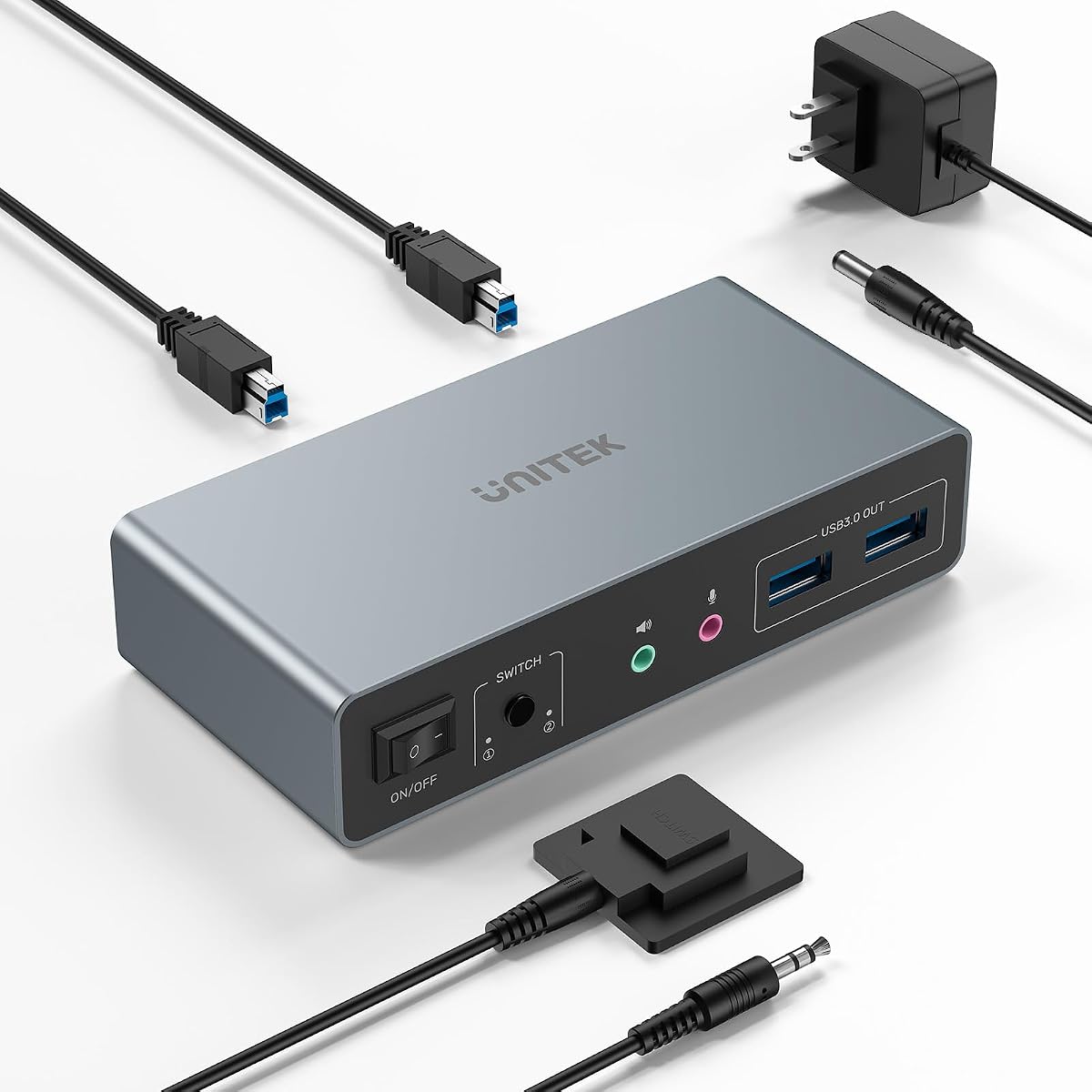
The Unitek KVM Switch 2 Monitors 2 Computers offers a robust solution for users with dual monitor setups. It supports both HDMI and DisplayPort connections, providing flexibility for different computer configurations. With support for resolutions up to 4K@60Hz, it ensures that your visuals remain clear and detailed during daily tasks or media consumption.
We may earn a commission when you buy through this link, at no additional cost to you.
This model stands out with its HDCP 2.2 compliance, which allows for seamless playback of protected content across your monitors. It includes four USB 3.0 ports for fast data transfer, and a desktop controller is provided to help manage the switching process. The inclusion of a 5V2A power adapter ensures that USB devices operate reliably without power issues.
A significant limitation of this switch is that it is designed for desktop hosts only and is not compatible with laptops. Additionally, to utilize both HDMI and DP outputs simultaneously, specific cable connections are required. While these constraints may limit some users, the performance for desktop setups remains solid and reliable.
We recommend this KVM switch for users managing two desktop computers with dual monitors. If you need to share peripherals between systems while maintaining high-quality video output, this model provides a stable and efficient solution. Its ease of use and comprehensive port support make it a strong choice for office environments.
Supports both HDMI and DisplayPort for versatile connectivity options.
HDCP 2.2 ensures smooth playback of encrypted video streams.
We may earn a commission when you buy through this link, at no additional cost to you.
The HDMI KVM Switch 3 Monitors 2 Computers is designed for users who need to share three displays across two systems. It supports resolutions up to 4K@60Hz, ensuring that your visual output remains sharp and detailed. With four USB 3.0 ports, you can easily share peripherals like keyboards, mice, and printers without the need for duplicate hardware.
We may earn a commission when you buy through this link, at no additional cost to you.
This switch offers both extended and duplicate display modes, providing flexibility for how you arrange your screens. The external power adapter helps maintain stability for high-power USB devices, which is crucial for preventing disconnections. The panel button and external wire controller allow for convenient switching, keeping your desk organized and clutter-free.
However, this model requires that your computers support 3-screen display and have the necessary HDMI ports connected properly. Additionally, it does not support keyboard shortcuts, so you must rely on physical controls. Despite these requirements, it offers a practical solution for complex multi-monitor environments.
We recommend this KVM switch for professionals who need a triple monitor setup. If your workflow involves managing multiple screens on two different computers, this device provides a straightforward and effective way to maintain productivity. Its ability to handle multiple displays with high resolution makes it a valuable tool.
Supports three monitors across two computers for extensive workspace management.
Four USB 3.0 ports allow for fast data transfer and efficient peripheral access.
We may earn a commission when you buy through this link, at no additional cost to you.
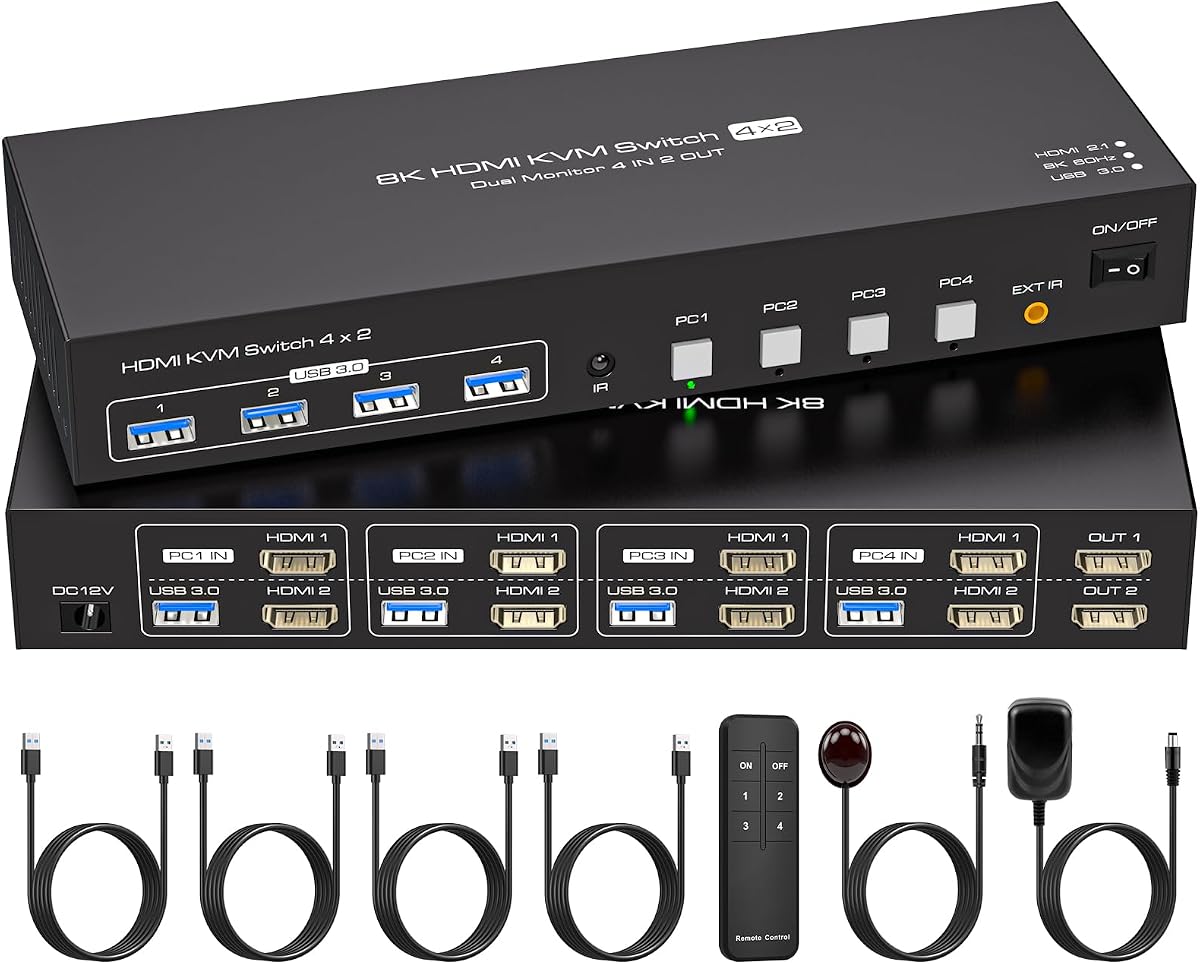
The 4 Port Dual Monitor HDMI KVM Switch is ideal for users managing up to four computers with two monitors. It supports resolutions up to 8K@60Hz and 4K@120Hz, ensuring high-quality video output. The switch allows you to share four USB 3.0 devices, making it efficient for environments with multiple systems that need to access shared peripherals.
We may earn a commission when you buy through this link, at no additional cost to you.
One of the standout features is the inclusion of an infrared remote control, which allows you to switch between computers without reaching for the switch itself. The built-in EDID emulation ensures that your system recognizes monitors quickly and maintains layout stability. This reduces the need for reconfiguration every time you switch systems, enhancing productivity.
However, to achieve optimal performance, each computer must have two HDMI ports connected. This requirement may limit its compatibility with devices that have fewer ports. Additionally, the switch is not the most compact option due to its extensive connectivity. These factors should be considered when planning your workspace setup.
We recommend this KVM switch for users with four computers who need a centralized control point. It is particularly useful for testing labs or small offices with multiple workstations. The high-resolution support and remote control make it a versatile and powerful tool for managing complex environments.
Includes an infrared remote for easy switching without touching the device.
Prevents window rearrangement when switching between different computers.
We may earn a commission when you buy through this link, at no additional cost to you.
The GL.iNet GL-RM10 Comet Pro Remote KVM redefines how users access multiple systems by offering remote control over a Wi-Fi 6 network. It supports 4K video passthrough and two-way audio, allowing for a natural remote interaction experience. This device is perfect for users who need to access systems from a different location or manage servers without physical access.
We may earn a commission when you buy through this link, at no additional cost to you.
One of the key features is the built-in Tailscale encryption, which provides secure communication between devices without exposing your network to the internet. The touchscreen interface simplifies management tasks, making it easy to configure networks or enable services. This unit is designed for advanced users who prioritize security and flexibility.
However, the price is higher than traditional KVM switches, and setting it up requires some networking knowledge. It is not a simple plug-and-play device like others on this list. Despite this, the benefits of remote access make it a compelling choice for those needing advanced capabilities.
We recommend this KVM for IT professionals or advanced users who require secure remote access. If you manage servers or remote workstations and need high-quality video and audio, this model offers a robust solution. Its unique features set it apart for specific use cases where traditional switches fall short.
Built-in Tailscale ensures secure data transfer between devices.
Supports 4K video passthrough for clear visual remote control.
We may earn a commission when you buy through this link, at no additional cost to you.
The UGREEN HDMI KVM Switch 2 Monitors 2 Computers is designed for users who need to manage two systems with dual displays. It supports resolutions up to 4K@60Hz and includes four USB 3.0 ports, including a USB-C port. This setup allows you to share peripherals efficiently while maintaining high-quality visuals across both screens.
We may earn a commission when you buy through this link, at no additional cost to you.
One of the main advantages is the inclusion of a desktop controller, which helps in keeping your workspace organized by allowing you to place the switch away from your desk. It supports both extended and mirror modes, providing flexibility for your display configuration. The HDMI 2.0 support ensures compatibility with a wide range of devices.
However, the lack of EDID emulation means you might experience some instability or resolution shifts when switching systems. Additionally, you must connect the external power supply for reliable USB device usage. Despite these limitations, it remains a solid option for those seeking dual monitor capability.
We recommend this KVM switch for users managing two computers with dual monitors. It offers a balance of performance and usability, making it suitable for home office setups. The included controller and USB-C port add convenience, enhancing the overall user experience.
Compatible with a wide range of HDMI devices including consoles and TVs.
Includes a desktop controller for easy switching without reaching for the switch.
We may earn a commission when you buy through this link, at no additional cost to you.
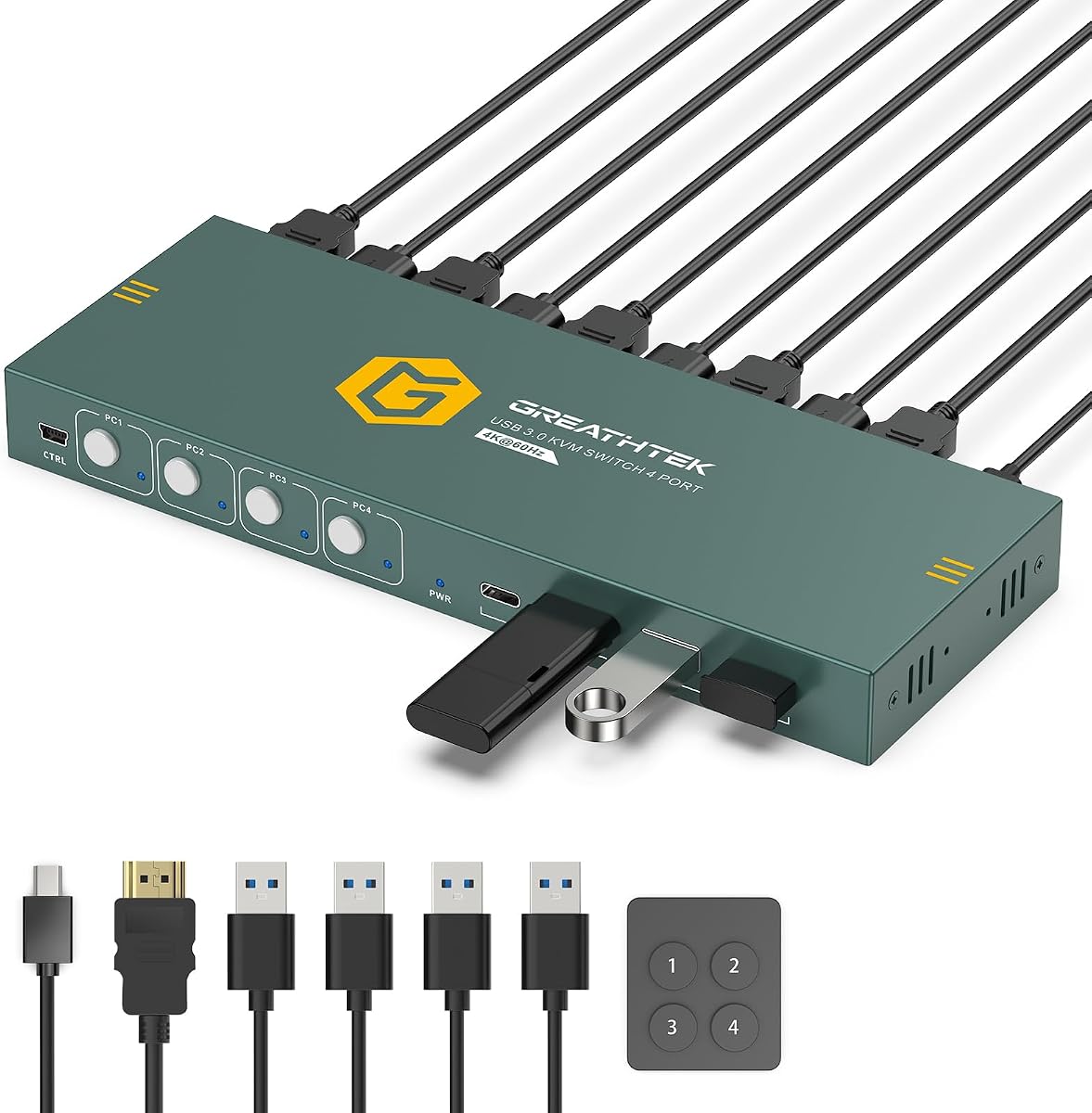
The HDMI KVM Switch for 4 Computers 1 Monitor is designed for users who need to manage up to four systems with a single display. It supports 4K@60Hz resolution, ensuring high-quality visuals. The switch includes four USB 3.0 ports, allowing you to share peripherals across all four computers efficiently without repetitive cable swapping.
We may earn a commission when you buy through this link, at no additional cost to you.
One of the main strengths is the included wired desktop remote, which provides numbered buttons for quick access to each computer. LED indicators clearly show which PC is active, making it easy to track your current selection. The EDID adaptive feature helps match appropriate resolution settings automatically, reducing the need for manual configuration.
While it supports four computers, it is limited to a single monitor setup. Additionally, keyboard shortcut support is not available, so you must use the physical buttons or remote. Despite these constraints, the device offers strong value for multi-PC workstations.
We recommend this KVM switch for users who operate four computers but only need one primary display. It is particularly useful for IT test benches or home offices where space is limited. The ease of use and fast USB transfer make it a reliable tool for shared environments.
Includes a wired remote with numbered buttons for quick one-touch access.
EDID adaptive feature automatically detects and matches display settings.
We may earn a commission when you buy through this link, at no additional cost to you.
The HDMI KVM Switch 1 Monitors 2 Computers is a compact solution for users managing two systems with a single monitor. It supports resolutions up to 4K@60Hz, ensuring clear visuals. The switch is designed for plug-and-play setup and includes a wired controller, allowing you to hide the unit and keep your desk organized.
We may earn a commission when you buy through this link, at no additional cost to you.
One of its strengths is that it does not require an external power supply, making it easy to set up without worrying about additional outlets. The LEDs clearly indicate which computer is active, providing immediate visual feedback. It also supports hot-swappable connections, allowing for flexible device usage.
However, the USB ports are limited to 2.0 speeds, which may not suffice for fast data transfer tasks. Additionally, the manufacturer recommends against using it with Mac devices due to potential compatibility issues. These limitations are acceptable for users who prioritize simplicity and space savings.
We recommend this KVM switch for users with basic setups who need to switch between two computers. It is ideal for home offices where space is limited and budget is a concern. Its compact design and ease of use make it a practical tool for simple environments.
Lightweight and compact size makes it easy to hide under a desk.
Does not require external power, simplifying the setup process.
We may earn a commission when you buy through this link, at no additional cost to you.
When selecting a KVM switch, it is essential to evaluate your specific connectivity needs and performance requirements. This guide outlines the critical factors to consider to ensure you choose a device that supports your workflow effectively.
The number of monitors you need to support is one of the most critical factors in choosing a KVM switch. Some models support single monitor setups, while others can handle dual or even triple displays. Ensure the switch you choose matches your current and future screen count to avoid the need for upgrades later.
Select a switch that supports your exact monitor count to maximize your workspace efficiency and avoid connection issues.
Consider the maximum resolution and refresh rate your KVM switch supports. High-end models offer 4K@60Hz or even 8K capabilities, which are vital for gaming, graphic design, or professional content creation. If you require high frame rates like 144Hz, ensure the switch explicitly supports those standards.
Choose a model that supports your display's maximum resolution and refresh rate to ensure smooth and clear visuals.
Most KVM switches include USB ports for sharing peripherals like keyboards, mice, and printers. Check the number of ports available and whether they are USB 2.0 or USB 3.0. USB 3.0 offers faster data transfer speeds, which is beneficial if you frequently move large files between computers.
Ensure the switch has enough USB ports for all your peripherals and supports fast data transfer if needed.
KVM switches typically offer various switching methods such as front panel buttons, desktop controllers, or remote controls. Some advanced models even support remote access over a network. Decide which method is most convenient for your setup to improve your workflow speed and efficiency.
Select a switching method that allows you to change computers quickly and conveniently without physical effort.
Ensure the KVM switch supports the video interfaces your computers and monitors use, such as HDMI, DisplayPort, or USB-C. Mismatched interfaces can lead to compatibility issues or the need for adapters, which may degrade signal quality. Always verify the input and output ports match your devices.
Confirm the KVM switch supports the correct video interface types to ensure seamless connectivity without adapters.
Some KVM switches require external power adapters to ensure stable operation, especially when multiple USB devices are connected. Others rely on power from the host computers. If you plan to use high-power USB devices like hard drives, an external power supply is recommended to prevent dropouts.
Choose a switch with adequate power support to ensure all connected USB devices operate reliably.
Hotkey switching allows you to change between computers using keyboard shortcuts, which can speed up your workflow. Not all models support this feature. Check if hotkey support is available and compatible with your operating system if this convenience is important for your daily tasks.
Check if the KVM switch supports keyboard hotkeys for faster and more efficient computer switching.
Ensure the KVM switch is compatible with your operating system, whether it is Windows, macOS, or Linux. Some switches may have driver requirements or specific compatibility limitations with certain systems. Verifying this beforehand prevents potential installation and functionality issues.
Verify that the switch supports your operating system to ensure driver-free and hassle-free operation.
To set up your KVM switch, first connect all video cables from your computers to the input ports of the switch. Then, connect the output ports to your monitors. Ensure that the connections are secure to avoid signal loss or flickering issues during use.
Next, connect your shared peripherals such as keyboards, mice, and other USB devices to the USB ports on the switch. If your model requires an external power adapter, connect it to the device and plug it into a power source to ensure stable USB performance.
Use the included desktop controller or the buttons on the device to switch between your connected computers. Keep the device in a well-ventilated area to prevent overheating. Avoid bending the cables excessively during storage or daily use to prolong the lifespan of the equipment.
A KVM switch allows you to control multiple computers using a single keyboard, monitor, and mouse. This reduces cable clutter and improves workspace efficiency. It is commonly used in office environments or by developers managing several machines.
Most KVM switches are plug-and-play and do not require additional drivers. They work automatically with compatible operating systems like Windows and macOS. However, advanced features may occasionally require software installation.
Yes, most KVM switches are backward compatible with lower resolutions. They typically support a range of display settings to ensure they work with various monitors. However, the maximum output depends on the specific model's capabilities.
The primary difference lies in the type of video interface they support. HDMI is widely used for consumer electronics, while DisplayPort is preferred for high refresh rates. Ensure the switch type matches your monitor and computer ports.
Yes, most KVM switches include USB ports that allow you to share peripherals like printers. This enables multiple computers to access the same printer without needing duplicate hardware. It is a convenient way to manage office resources.
This issue may be due to incompatible video cables or incorrect connections. Ensure all cables are securely plugged in and support the required resolution. Some switches may also require specific power setups to function correctly.
Many KVM switches are compatible with Mac systems, but some models may have limitations. Always check the product specifications for macOS support before purchasing to avoid compatibility issues during setup.
Selecting the right KVM switch depends on your specific workflow needs, whether you require high-resolution support for dual displays or just a simple switch for a single monitor. The UGREEN models offer excellent performance for advanced setups, while options like the Hearvo provide affordability for basic tasks.
Prioritize features like USB data speeds, video resolution, and switching methods that align with your daily tasks. A switch that supports your desired refresh rates or port types will ensure smooth operation. Consider future expansion needs to avoid replacing the device soon.
Remember to verify the latest product details and compatibility before buying. Prices and availability change frequently, so checking current listings is essential for the best purchase. With the right KVM switch, you can simplify your workspace and boost productivity significantly.