Audio Express AXHDCAP
4.4Editor score
Affordable USB 2.0 capture
1080P 30FPS output support
Plug and play simplicity
Finding the right HDMI recorder can transform how you capture content from consoles, cameras, and media players. Whether you need a standalone unit or a USB capture card, the right device ensures high-quality video without needing a powerful PC.
We have analyzed ten leading HDMI recorders based on resolution support, latency, compatibility, and ease of use. Our comparison covers devices ranging from budget-friendly capture sticks to professional standalone recorders with built-in screens and scheduling features.
Each pick highlights key strengths and ideal use cases so you can match a device to your specific recording needs. Remember that product availability and pricing may shift over time, so always verify details before making your final purchase decision today.
4.4Editor score
4.0Editor score

4.1Editor score
As an Amazon Associate we earn from qualifying purchases.
The following table provides a side-by-side look at the core capabilities of each HDMI recorder featured in this guide. Compare resolution limits, input types, and standalone features to find the model that fits your workflow best.



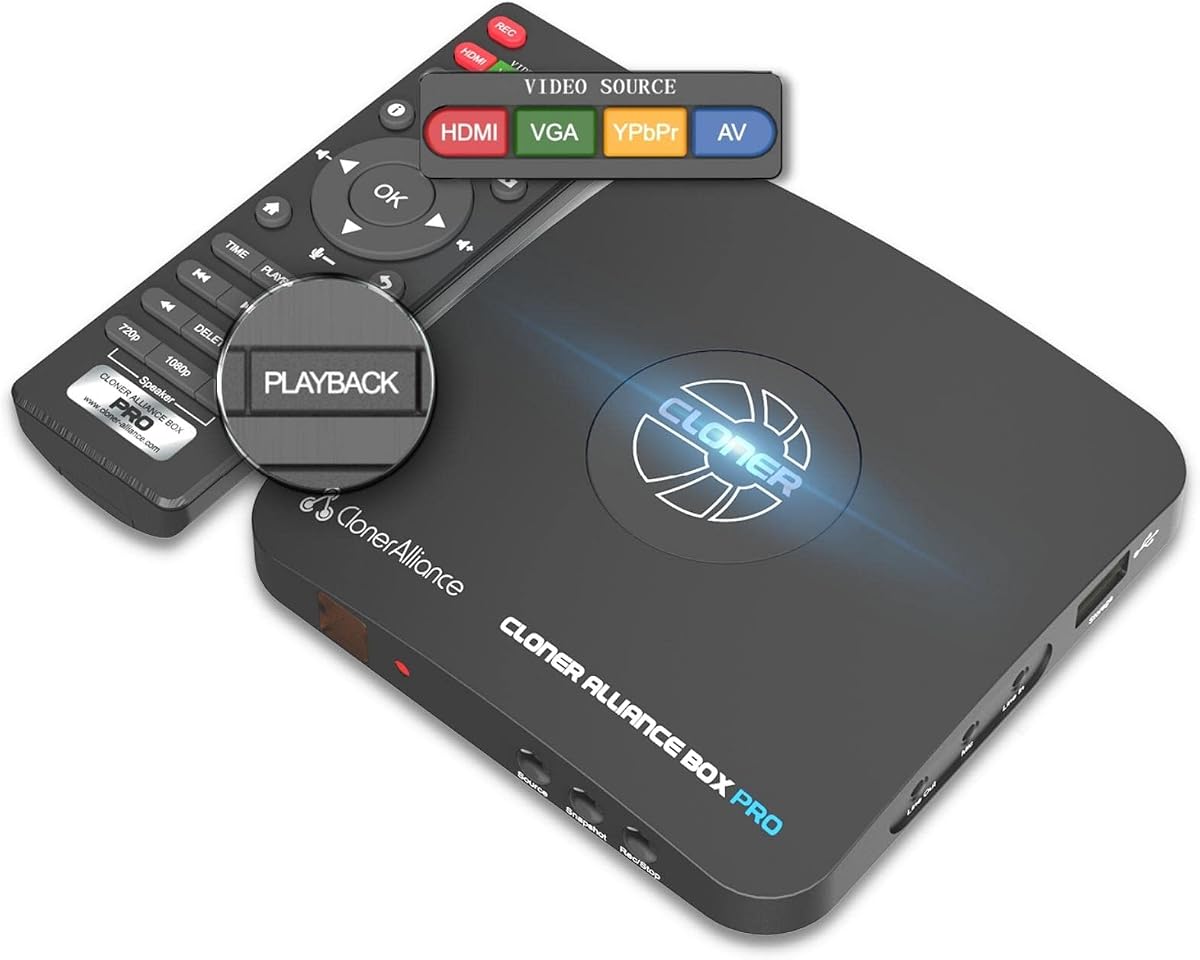
The ClonerAlliance Box Pro stands out as a robust standalone recorder that eliminates the need for a computer during capture. It handles 1080p video at 60fps and accepts a wide variety of inputs including HDMI RCA YPbPr and VGA.
We may earn a commission when you buy through this link, at no additional cost to you.
This device shines for users who want to archive VHS tapes or capture gameplay directly to a USB drive without opening a laptop. The built-in scheduler allows you to set recording times and you can watch the video live on your TV simultaneously.
One trade-off is that it cannot bypass HDCP protection which means you cannot record from many streaming services or modern cable boxes. Additionally the file system support requires specific formatting which may be confusing for non-technical users.
Overall this recorder is ideal for preserving analog memories or streaming console games to a PC while keeping the main setup simple. It remains a strong choice for anyone needing a plug-and-play analog-to-digital conversion tool.
It connects to VHS players camcorders and gaming consoles easily allowing users to digitize old content without extra adapters.
You can record playback and schedule tasks directly on the device without ever needing to connect it to a computer.
We may earn a commission when you buy through this link, at no additional cost to you.
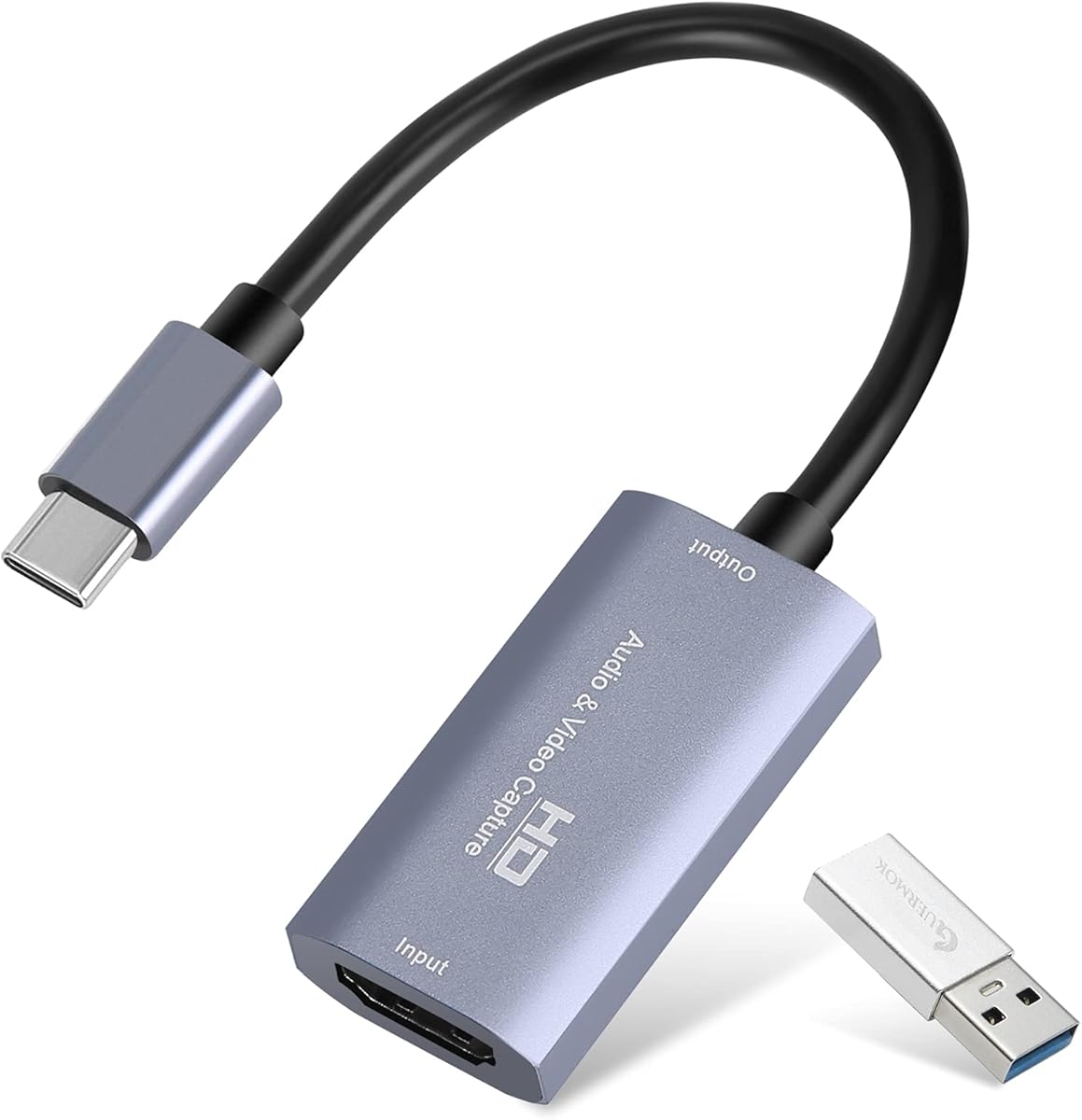
The Guermok Video Capture Card offers a budget-friendly solution for streamers and creators who need reliable USB capture without breaking the bank. It supports 4K input and delivers crisp 1080P video at 60FPS which is perfect for most streaming platforms.
We may earn a commission when you buy through this link, at no additional cost to you.
Its compact aluminum body helps dissipate heat during long sessions and the USB-C compatibility makes it useful for modern laptops. Users report smooth real-time preview capabilities when paired with OBS or other standard broadcasting software.
However the device relies entirely on external software to function so it is not a standalone recorder. Some users note that using the included adapter might default the connection to USB 2.0 speeds if not plugged in correctly.
This card is an excellent entry-level choice for gamers or teachers who need to stream content from a console or camera to a computer. It balances performance and cost well for casual users who do not need professional grade features.
USB 3.0 connectivity ensures that video data moves quickly to your computer without causing lag or dropped frames.
It works seamlessly with Windows Mac and Linux systems making it a versatile tool for diverse work environments.
We may earn a commission when you buy through this link, at no additional cost to you.
The ClonerAlliance UHD Pro is a premium standalone device designed for users who need to capture high-resolution content without relying on a PC. It records in 4K and supports modern codecs that reduce file sizes while maintaining quality.
We may earn a commission when you buy through this link, at no additional cost to you.
This recorder is particularly useful for capturing gameplay or conferencing video in ultra-high definition. The passthrough feature allows you to view content on a TV without delay while the device records to a USB drive or TF card.
While it offers advanced features like schedule recording and cinematic frame rates it does not work with copyrighted HDMI streams due to HDCP restrictions. The higher cost may also be a barrier for casual users who only need 1080p capture.
For professionals or enthusiasts who want to archive high-quality videos directly to portable storage this device provides unmatched flexibility. It bridges the gap between professional hardware and consumer-friendly standalone recorders.
H.265 encoding helps save storage space without sacrificing video clarity during long recording sessions.
You can select specific frame rates like 24fps to achieve a movie-like look for your recorded content.
We may earn a commission when you buy through this link, at no additional cost to you.
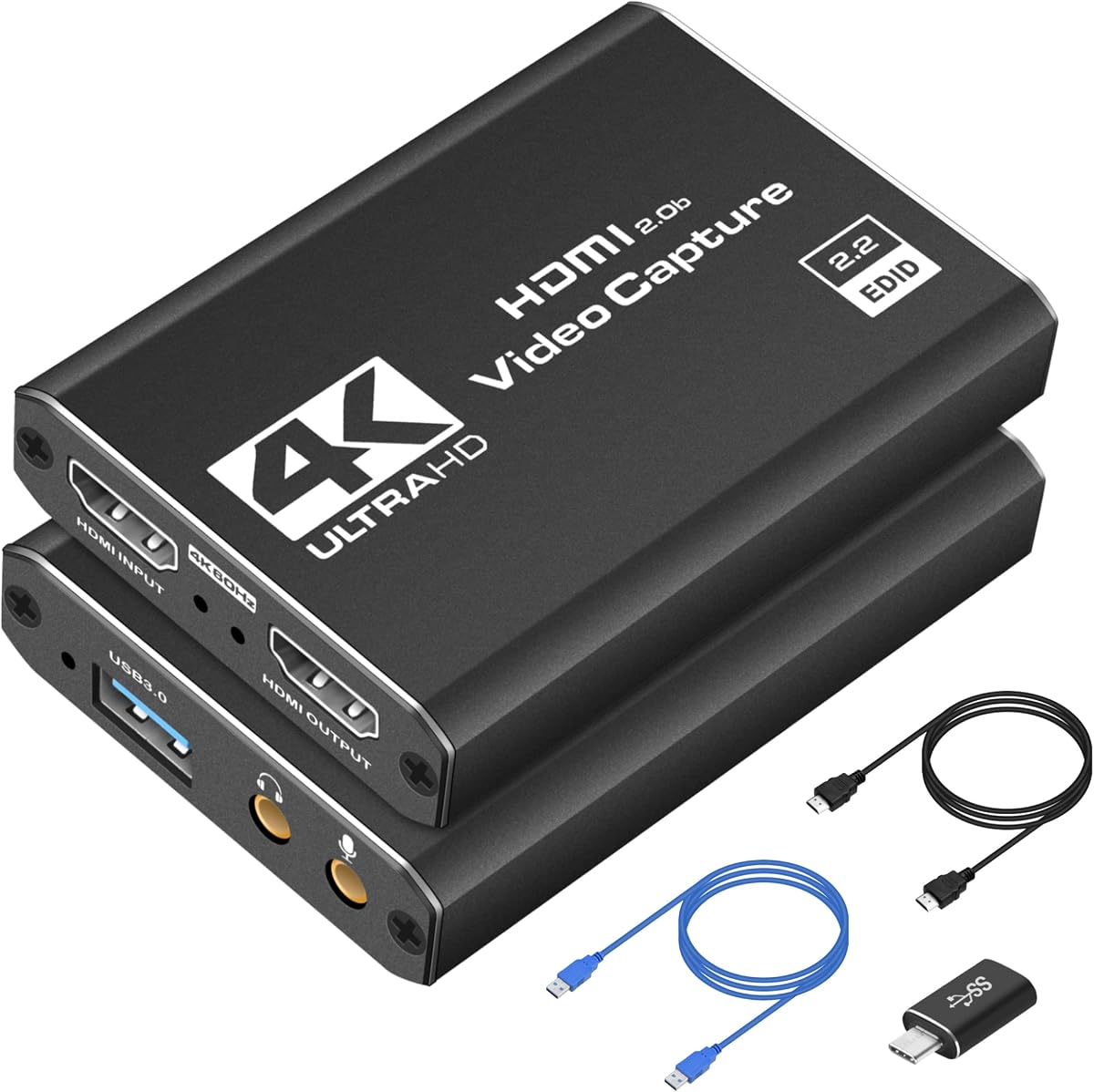
This Capture Card delivers solid performance for gamers who need to stream gameplay from consoles like Xbox or PS5. It supports 1080P capture at 60FPS and includes a loop-out port so you can play on your monitor without input lag.
We may earn a commission when you buy through this link, at no additional cost to you.
The built-in microphone input allows you to add commentary directly through the device which simplifies your audio setup. It works plug and play with OBS and other software making it accessible even for beginners who have never streamed before.
While it lacks 4K output it handles 4K input signals well for downscaling. The build is basic compared to premium models and some users may find the plastic casing less durable over time.
This device is a great value for hobbyist streamers looking to start a channel without a large investment. It provides all the essential features needed for reliable 1080p streaming at a competitive price.
The loop-out port ensures that your gameplay remains responsive while the capture card sends video to your computer.
Add your voice using the 3.5mm mic jack without needing an external mixer or audio interface.
We may earn a commission when you buy through this link, at no additional cost to you.
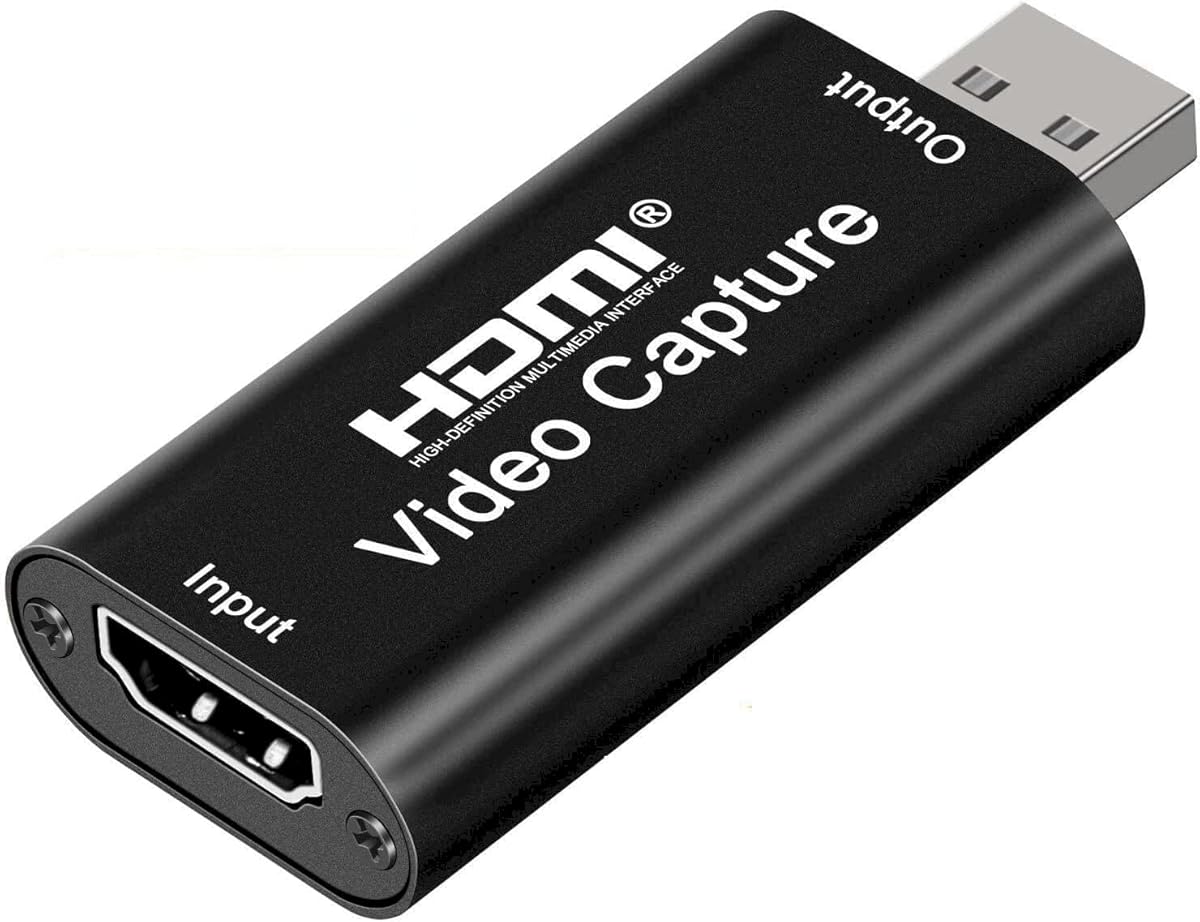
The Audio Express AXHDCAP is the most affordable option on this list making it ideal for users who need basic capture capabilities. It accepts 4K input but outputs 1080P at 30FPS which is sufficient for most video calls and casual streaming.
We may earn a commission when you buy through this link, at no additional cost to you.
Despite its low price it offers real-time preview and works with popular platforms like OBS and Zoom. The aluminum casing helps manage heat even though it uses USB 2.0 technology which limits bandwidth compared to USB 3.0.
The main limitation is the frame rate cap at 30FPS which may not be smooth enough for fast-paced gaming. Additionally users should avoid using it with HDMI 2.1 devices that require higher bandwidth.
This card is perfect for online teaching or occasional content creation where budget is a priority. It delivers reliable performance for static or slow-moving video sources without requiring a large financial commitment.
Users can start streaming or recording immediately without spending much money on additional hardware.
It integrates easily with common software like Potplayer VLC and OBS Studio for various use cases.
We may earn a commission when you buy through this link, at no additional cost to you.
This Capture Card delivers high performance for its class by leveraging USB 3.0 speeds to ensure smooth 60FPS video capture. It is designed to work with a wide range of modern consoles and PCs making it a versatile tool for content creators.
We may earn a commission when you buy through this link, at no additional cost to you.
Users appreciate the low-latency performance which is critical for competitive gaming and live streaming. The device requires no drivers and works instantly with Streamlabs and OBS Studio allowing you to start broadcasting right away.
While it lacks advanced features like audio mixing or loop-out ports it excels at its core function of capturing clean video. The compact size makes it easy to carry between events or LAN parties without taking up much space.
For streamers who need reliable 1080P capture without a large investment this card offers an excellent balance of speed and simplicity. It is a strong contender for mid-range users who want better performance than basic USB 2.0 devices.
USB 3.0 ensures that high frame rate video streams to your PC without buffering or data loss.
It works seamlessly with PS5 Xbox Series X and Switch allowing you to stream from any major platform.
We may earn a commission when you buy through this link, at no additional cost to you.
This capture box offers unique features like dual HDMI inputs and a built-in screen allowing you to manage multiple video sources without a PC. It supports up to 4K60 input which is great for professional setups or multi-camera events.
We may earn a commission when you buy through this link, at no additional cost to you.
The ability to use battery power makes it portable for field recording or events where power outlets are scarce. The PIP and POP functions let you combine feeds or preview your content directly on the device.
However some users report reliability issues or limited support compared to more established brands. The price is higher than single-input capture cards and the screen may not be as bright as external monitors.
For producers who need to switch between cameras or consoles on the fly this device provides significant flexibility. It is best suited for those who want a standalone solution with advanced multi-source capabilities.
Switch between two HDMI sources instantly without needing to unplug cables or use external switches.
Run the device on a battery for mobile recordings or outdoor events without needing a wall socket.
We may earn a commission when you buy through this link, at no additional cost to you.
The ZowieREC 4K HDMI Video Recorder offers a sleek aluminum design and robust standalone recording features for users who want quality without a computer. It supports 4K recording and passthrough allowing you to play and record simultaneously.
We may earn a commission when you buy through this link, at no additional cost to you.
The pause functionality gives you control to edit your recording in real time which can save time on post-production. Scheduled recording ensures you never miss important events even when you are away from the device.
However user feedback suggests that the product may not meet expectations in all scenarios and support can be mixed. The lack of HDCP support means it cannot record from many protected media sources which limits its utility for streaming content.
This device is well-suited for those who prioritize build quality and standalone functionality over broad compatibility. It is a solid choice for recording unencrypted HDMI signals or game consoles where content protection is not an issue.
The aluminum casing provides durability and a modern look that fits well in professional environments.
Schedule tasks to automate your recording workflow so you do not have to monitor the device manually.
We may earn a commission when you buy through this link, at no additional cost to you.
The ClonerAlliance ViewPro is a unique device that combines a recorder with a built-in 7-inch LCD screen allowing you to preview content without a monitor. It handles 1080p capture and accepts both digital HDMI and analog inputs like RCA.
We may earn a commission when you buy through this link, at no additional cost to you.
This makes it perfect for digitizing old VHS tapes or camcorder footage where analog adapters are required. The portable design and remote control allow you to carry it to events or use it in different rooms easily.
While the screen is convenient it adds to the overall cost compared to plain capture cards. Additionally it is limited to 1080p recording which may not be enough for users seeking true 4K capture.
For users who need to work with a mix of old and new hardware this device offers unmatched convenience. It is ideal for educators archivists or travelers who want a self-contained video solution.
The LCD screen lets you verify recording quality instantly without needing a TV or computer monitor.
Connect both HDMI and older analog sources to capture everything from consoles to VHS players.
We may earn a commission when you buy through this link, at no additional cost to you.
The Blackmagic Design UltraStudio Express is a professional tool designed for broadcast environments where SDI connectivity is standard. It supports 3G-SDI inputs and offers robust audio handling capabilities that exceed typical consumer capture cards.
We may earn a commission when you buy through this link, at no additional cost to you.
This device is best suited for professional videographers or studios that need high-fidelity video and audio capture. It provides a loop output so you can monitor the signal alongside recording without any loss in quality.
However it requires specific SDI cables and interfaces which adds to the setup complexity and cost. It is not designed for casual HDMI use and may need additional adapters for standard consumer devices.
For professional settings where signal integrity is critical this recorder delivers the highest standard of performance. It is the clear choice for users building a permanent studio setup or working in professional media production.
Use SDI connections to ensure signal stability and professional grade video quality for live events.
Handles multiple audio inputs to give you precise control over sound levels during professional recordings.
We may earn a commission when you buy through this link, at no additional cost to you.
Choosing the right HDMI recorder depends on your specific needs whether you need a standalone unit or a USB capture card. Below are the key factors to consider before making your purchase.
Look for devices that support at least 1080p at 60FPS to ensure smooth video capture. If you need higher quality for professional work consider models that support 4K resolution and higher bitrates for better clarity.
Ensure the device can handle your source signal's max resolution so you do not lose detail during the capture process.
Decide if you need a standalone recorder that works without a computer or a USB card that requires a PC. Standalone units are great for archiving or events where laptops are impractical.
USB capture cards are more versatile for streaming and editing directly into software but require a compatible computer system.
Check that the device has the right ports for your sources such as HDMI RCA or VGA. Some devices also offer loop-out features which are essential if you want to view the signal on a monitor while recording.
Having multiple inputs can save you from buying extra switches if you need to record from different devices.
Verify what storage options the device supports whether it is USB drives SD cards or internal storage. Ensure it formats correctly with file systems like FAT32 or exFAT so you can save large files.
High capacity storage is important for long recording sessions especially if you are capturing high-resolution video.
Be aware that most devices do not support HDCP protected content such as streaming services or Blu-ray discs. If you plan to record from these sources you may need a device that explicitly states HDCP removal.
Always check the manufacturer's notes to confirm if the recorder can bypass content protection before purchasing.
Some devices are plug-and-play while others require specific drivers or capture software to function correctly. Ensure you are comfortable with the setup process and that the software supports your operating system.
Software with advanced features like scheduling or trimming can add significant value to your recording workflow.
If you travel often or move between rooms consider a compact aluminum design that resists heat. Durable builds ensure that your device lasts longer during frequent use.
Portable models with built-in screens can be more versatile if you do not have access to external monitors.
Determine your budget based on your needs since standalone recorders often cost more than simple capture cards. A higher price does not always mean better performance so compare features carefully.
Focus on the features that matter most to you like resolution or standalone capability to get the best value.
Start by connecting your video source to the recorder using an HDMI cable. If you are using an analog device ensure you have the proper adapter for RCA or VGA inputs to get a clean signal.
For standalone recorders insert a USB drive or SD card and navigate the menu to select your desired resolution and file format. Set up any recording schedules if you need to capture content automatically at specific times.
To maintain your device keep it in a cool and dry place to prevent overheating. Regularly check cables and connections for wear and replace them if you see signs of damage to ensure consistent video quality.
Yes most HDMI recorders support gaming consoles like Xbox and PlayStation as long as the console does not block the signal with HDCP. Simply connect the console to the recorder and set your capture software to recognize the device.
Standalone recorders do not require software as they record directly to storage. USB capture cards need compatible capture software like OBS to view and save the video stream.
Most devices accept USB flash drives or external hard drives formatted to FAT32 or exFAT. Some standalone units also support SD cards for added convenience and portability.
You can record from a set-top box if it outputs an unencrypted HDMI signal. If the box uses HDCP for protected content you may not be able to record the video depending on the device.
Many USB capture cards support macOS but standalone recorders are device-independent. Always check the product page for specific Mac OS compatibility notes before purchasing.
Use a high-quality HDMI cable and ensure your device supports the resolution and frame rate of your source. For USB capture use a USB 3.0 port on your computer to maintain bandwidth and reduce latency.
Yes many HDMI recorders are compatible with video conferencing software. You can connect a webcam or camera to the recorder and use it as a virtual camera source.
If the HDMI signal is interrupted the recording may stop or the file may be corrupted. Always ensure cables are secure before starting a recording session.
We have explored ten diverse HDMI recorders ranging from budget capture cards to high-end standalone units. Whether you need to archive old tapes or stream gameplay each device offers unique strengths to match your needs.
Prioritize resolution and connectivity based on your sources and decide if you require standalone operation. A good recorder saves time and ensures that you capture content reliably without compromising on video quality.
Always check the latest product details and compatibility before buying to ensure the device fits your setup. Prices and availability may change so confirm your choices at the official store before finalizing your order.